

 Set up docs MCP
Prerequisites
To successfully follow this guide, you’ll need the following:
- A running ClickHouse Cloud service. If you don’t have one yet, complete the ClickHouse Cloud quick start first.
What you’ll build
In this quickstart you’ll learn how to locate the connection details for your ClickHouse Cloud service - the hostname, port numbers, username, and password you need to connect from any external client, CLI tool, or application.
By the end, you’ll know where to find these details in the Cloud console and how to verify connectivity using a simple curl command, so you’re ready to connect from tools like clickhouse-local, clickhouse-client, or any ClickHouse driver.
Open the Cloud console
Navigate to the ClickHouse Cloud console and sign in to your account.
From the main dashboard, locate the service you want to connect to. If the service is idled, click on it and wait for it to wake up before proceeding - you’ll need it running to verify connectivity in a later step.
Find your connection details
Click on your service to open its details page, then click the Connect button in the left sidebar:
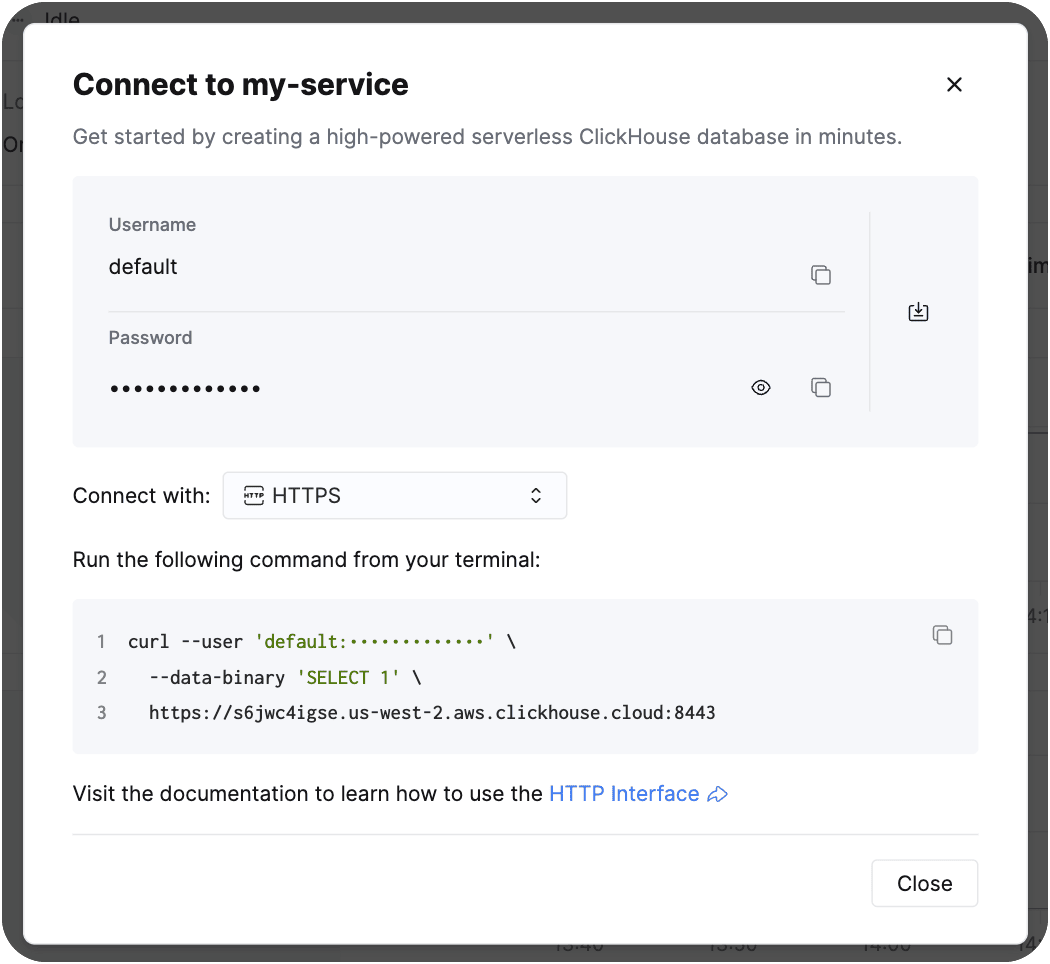
The first time you click this button, you’ll see a dialogue showing your credentials:
| Detail | Description |
|---|---|
| Username | Your username (typically default) |
| Password | The generated password for your service |
There is also a dropdown with preformatted example connection strings for different protocols and interfaces (e.g. clickhouse-client, HTTPS, JDBC, etc.), which you can copy directly.
You’ll also find your service hostname on the service details page (e.g. abc123.us-east-1.aws.clickhouse.cloud). Copy it along with your credentials - you’ll need both throughout the remaining steps and in subsequent quickstarts.
Understand the connection protocols
ClickHouse Cloud exposes two main network protocols, each on its own port:
- Native protocol (port 9440) - A binary protocol used by
clickhouse-client,clickhouse-local, and most language-specific drivers. It is the fastest option and supports all ClickHouse features. TLS is required on Cloud. - HTTPS protocol (port 8443) - An HTTP-based interface useful for REST clients,
curl, web-based tools, and drivers that prefer HTTP. Also requires TLS on Cloud.
Both protocols require TLS encryption when connecting to ClickHouse Cloud - you cannot connect over plaintext. Most tools handle this automatically when you specify the correct port, but you may need to pass a --secure flag or set ssl=true depending on the client.
For most quickstarts and CLI workflows in this series, you’ll use the native protocol on port 9440.
Save your connection details for reuse
You’ll use these connection details frequently across quickstarts. To avoid retyping them every time, you can export them as environment variables in your terminal session:
export CLICKHOUSE_HOST=YOUR_HOST.clickhouse.cloud
export CLICKHOUSE_USER=default
export CLICKHOUSE_PASSWORD=YOUR_PASSWORD
Replace the values with your actual hostname, username, and password.
If you’ll be connecting to your Cloud service using clickhouse-client or clickhouse-local, obtain the hostname by selecting ‘Native’ from the dropdown next to “Connect with:”.
Copy the hostname which appears after --host from the shown connection example.
Next steps
You now have all the connection details needed to connect to your ClickHouse Cloud service from any external tool. The hostname, port, username, and password you found here are used throughout the rest of the quickstart series.
Check out the following quickstarts next:
Or go deeper with the reference documentation:

You can follow this path yourself, script it, or hand it to an AI agent. Switch to the Cloud UI view for the console version.
This page covers locating the connection details for an existing ClickHouse Cloud service - the hostname, port numbers, username, and password - from the command line with the ClickHouse CLI (clickhousectl). Commands are non-interactive; clickhousectl emits JSON with --json.
Prerequisites
Install the ClickHouse CLI:
curl https://clickhouse.com/cli | shYou also need jq.
The write steps below require API key authentication: cloud service start (only if your service is stopped) and reset-password. OAuth login is read-only and covers only the read steps (service list, service get):
clickhousectl cloud auth login --api-key <YOUR_KEY> --api-secret <YOUR_SECRET>Alternatively, set the CLICKHOUSE_CLOUD_API_KEY and CLICKHOUSE_CLOUD_API_SECRET environment variables. Verify with clickhousectl cloud auth status; expect an entry with scope read/write.
You should also have an existing ClickHouse Cloud service to retrieve connection details from, for example one created in the Create your first Cloud service quickstart or in the Cloud quick start CLI flow.
Find your service
List the services in your organization and note the ID of the one you want to connect to:
clickhousectl cloud service list --json | jq -r '.[] | [.id, .name, .state] | @tsv'9c2d4e61-7a35-49c8-8f0e-2b5a1d7c3e90 my-first-service runningSave the service ID; every other command in this guide takes it as an argument. To look it up by name:
CH_ID=$(clickhousectl cloud service list --json | jq -r '.[] | select(.name == "my-first-service") | .id')You’ll need the service running to verify connectivity in a later step. If its state is stopped, start it and poll until it is running (a service that is idle from idle scaling wakes automatically on the first connection, so it needs no action here):
clickhousectl cloud service start "$CH_ID"
while [ "$(clickhousectl cloud service get "$CH_ID" --json | jq -r .state)" != "running" ]; do
  sleep 15
done
Get your connection details
clickhousectl cloud service get returns the full service details, including one endpoint per exposed protocol. Save the response and extract the pieces you need:
clickhousectl cloud service get "$CH_ID" --json > service.json
jq '.endpoints' service.json
[
{
"host": "abc123.us-east-1.aws.clickhouse.cloud",
"port": 9440,
"protocol": "nativesecure"
},
{
"host": "abc123.us-east-1.aws.clickhouse.cloud",
"port": 8443,
"protocol": "https"
}
]These are the two main network protocols of ClickHouse Cloud, each on its own port:
- Native protocol (
nativesecure, port 9440) - A binary protocol used byclickhouse-client,clickhouse-local, and most language-specific drivers. It is the fastest option and supports all ClickHouse features. TLS is required on Cloud. - HTTPS protocol (
https, port 8443) - An HTTP-based interface useful for REST clients,curl, web-based tools, and drivers that prefer HTTP. Also requires TLS on Cloud.
Both protocols require TLS encryption when connecting to ClickHouse Cloud - you cannot connect over plaintext. Most tools handle this automatically when you specify the correct port, but you may need to pass a --secure flag or set ssl=true depending on the client. For most quickstarts and CLI workflows in this series, you’ll use the native protocol on port 9440.
Extract the hostname and ports:
CH_HOST=$(jq -r '.endpoints[] | select(.protocol == "nativesecure") | .host' service.json)
CH_NATIVE_PORT=$(jq -r '.endpoints[] | select(.protocol == "nativesecure") | .port' service.json)
CH_HTTPS_PORT=$(jq -r '.endpoints[] | select(.protocol == "https") | .port' service.json)
The username is default unless you created additional database users.
Get a password
The password for the default user is returned exactly once, by clickhousectl cloud service create - no API or CLI call can read it back later. If you saved it at creation time, assign it to the variable the later steps use and skip the reset:
CH_PASSWORD='<your saved password>'If it’s lost, generate a new one:
CH_PASSWORD=$(clickhousectl cloud service reset-password "$CH_ID" --json | jq -r .password)Save your connection details for reuse
You’ll use these connection details frequently across quickstarts. To avoid retyping them every time, you can export them as environment variables in your terminal session:
export CLICKHOUSE_HOST=$CH_HOST
export CLICKHOUSE_USER=default
export CLICKHOUSE_PASSWORD=$CH_PASSWORDVerify connectivity
Verify the HTTPS interface (port 8443) with curl:
curl --user "$CLICKHOUSE_USER:$CLICKHOUSE_PASSWORD" \
"https://$CLICKHOUSE_HOST:8443/?query=SELECT%201"1Verify the native protocol (port 9440) with clickhouse client. The ClickHouse CLI manages the clickhouse binary for you, so if you don’t already have it, clickhousectl local use latest installs it and symlinks it to ~/.local/bin/clickhouse. Then:
clickhouse client --host "$CLICKHOUSE_HOST" --secure --port 9440 \
  --user "$CLICKHOUSE_USER" --password "$CLICKHOUSE_PASSWORD" \
  --query "SELECT concat('Connected to ClickHouse ', version(), ' as ', currentUser())"
Connected to ClickHouse 26.2.1.558 as defaultCleanup
This guide only reads service metadata and (optionally) resets a password - it creates no new cloud resources, so there is nothing to clean up.
One exception: if your service was stopped and you started it just to verify connectivity, it now keeps running and billing for compute. Stop it again if you don’t need it running yet:
clickhousectl cloud service stop "$CH_ID"Next steps
You now have all the connection details needed to connect to your ClickHouse Cloud service from any external tool. The hostname, port, username, and password you found here are used throughout the rest of the quickstart series.
Check out the following quickstarts next:
Or go deeper with the reference documentation: